Four steps from an empty account to a working till. Every step comes with a picture of what you actually see on screen. Working through it takes about half an hour.
Before you start
A Movira account. If you do not have one yet, write to us — we will set it up and send you a login link.
A browser on a computer, tablet or phone. Nothing to install; there is also a packaged version for Android, iOS and Windows.
A list of products to start with. The ten best sellers are plenty — you can add the rest while selling.
A card terminal, receipt printer and cash drawer are optional. Without them the till works on cash and an on-screen receipt.
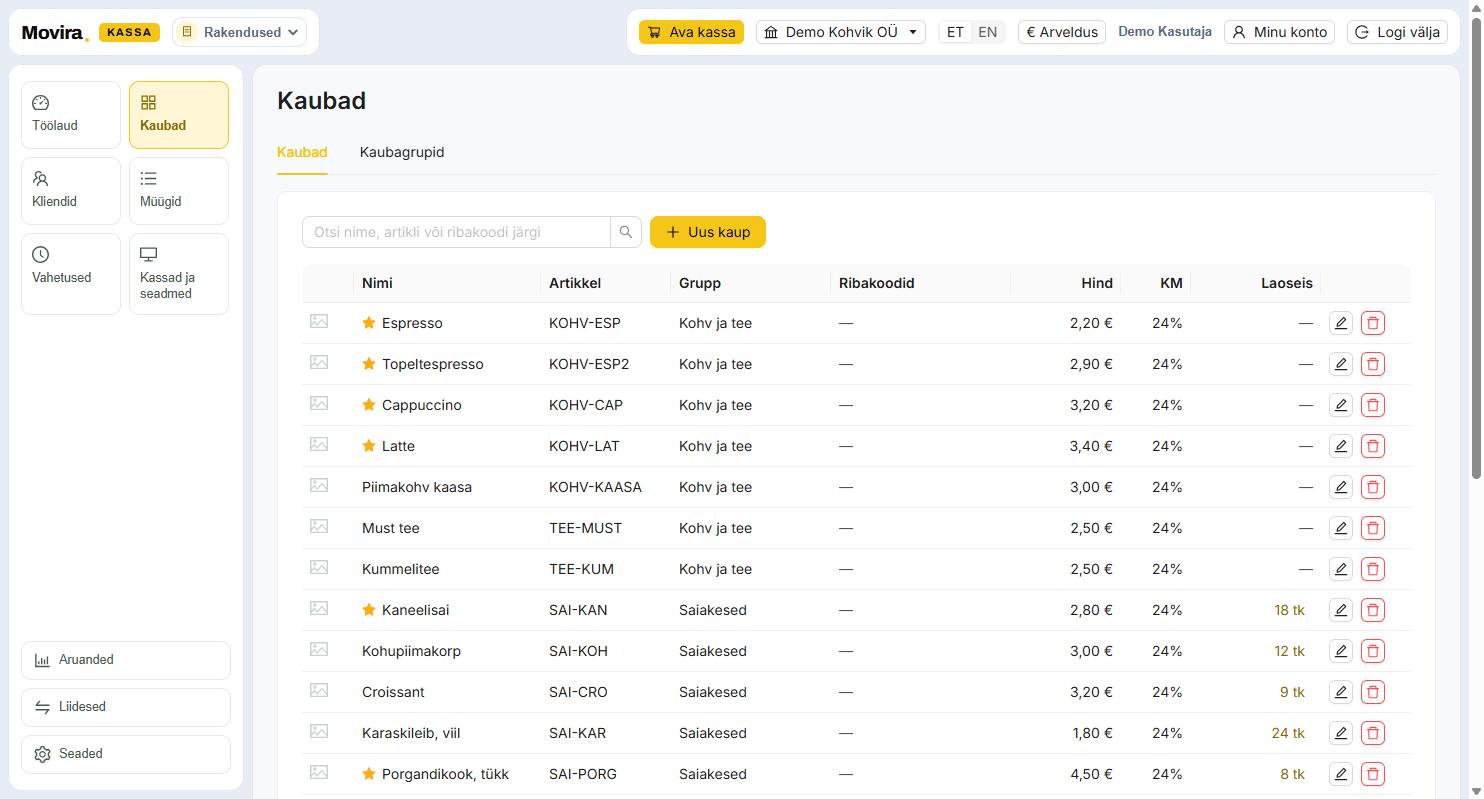
Products are the only thing the till has to know before the first sale. Open "Products", press "New product" and give it a name, a price and a VAT rate. The SKU and barcode are optional, but a product with a barcode lands in the basket with a single scan. Group the products the way you think about them — those same groups become the button bar in the till view and the breakdown in the reports.
The price is the price the customer pays; VAT is calculated out of it.
A starred product rises into "Quick picks" in the till view. Put the everyday sellers there.
The stock column only fills in if stock tracking is switched on for that product. Without it the till keeps selling and the column stays a dash.
You do not have to type a long list by hand: "Integrations" has a CSV import and a product feed from your accounting software.
Step 2
Make the first sale
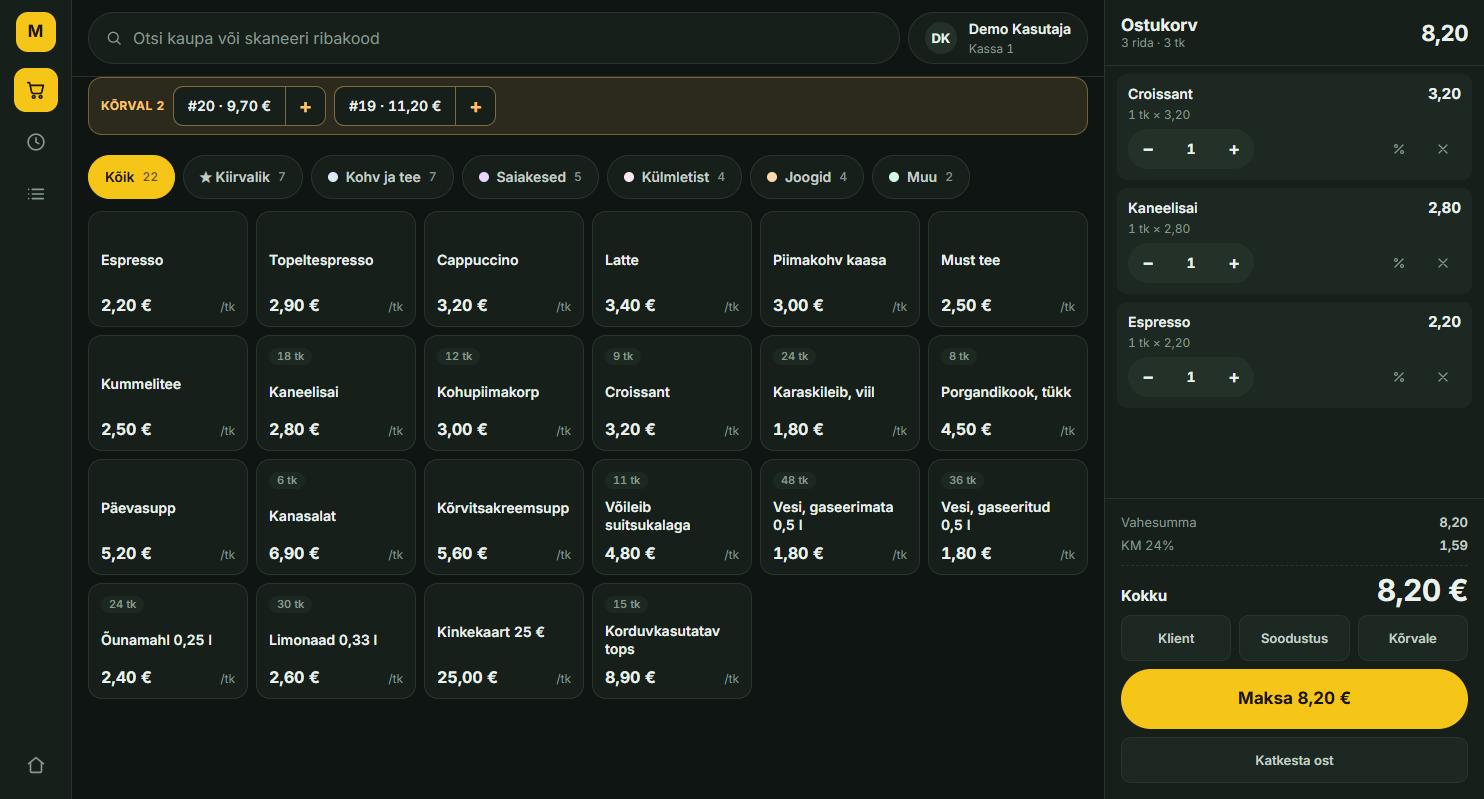
The till view opens from the dashboard button "Open till view". Products go into the basket either by scanning a barcode or by tapping a tile, and the quantity changes with minus and plus. "Pay" is where you pick the payment method — cash, card or both at once — and the receipt is done. If a customer has to wait, park the sale with "Park" and take the next one; parked receipts sit on the top bar and can be brought back at any time.
The till view is deliberately dark with large tiles: it is used standing up, with a finger.
A discount can be given on one line or on the whole sale.
A sale tied to a customer goes into their purchase history, and prepaid balance can be deducted right there.
A shift has to be opened at the start of the day and closed at the end — that is where the cash count and the daily report come from.
Step 3
Watch the day
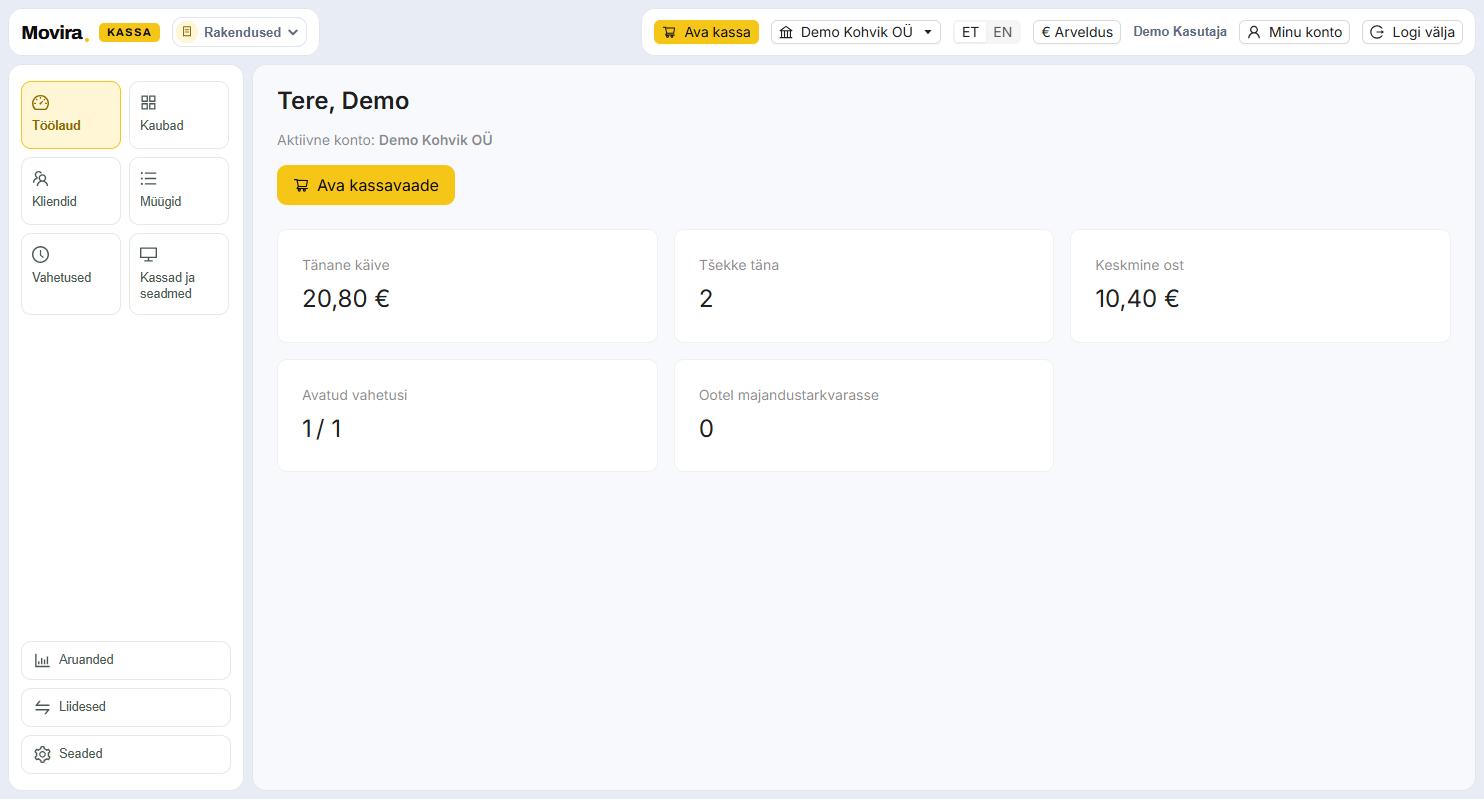
The dashboard answers the four questions that come up during a day: how much has come in today, how many receipts there have been, how large the average basket is and whether a shift is open. The last card shows how many sales are still waiting to reach your accounting software — a zero there means everything has arrived.
The numbers belong to the active account. You switch accounts from the name bar at the top.
Several tills are added together on the dashboard; per-till figures are in the reports.
"Waiting for accounting" is where a broken integration shows up first.
Step 4
Close the month
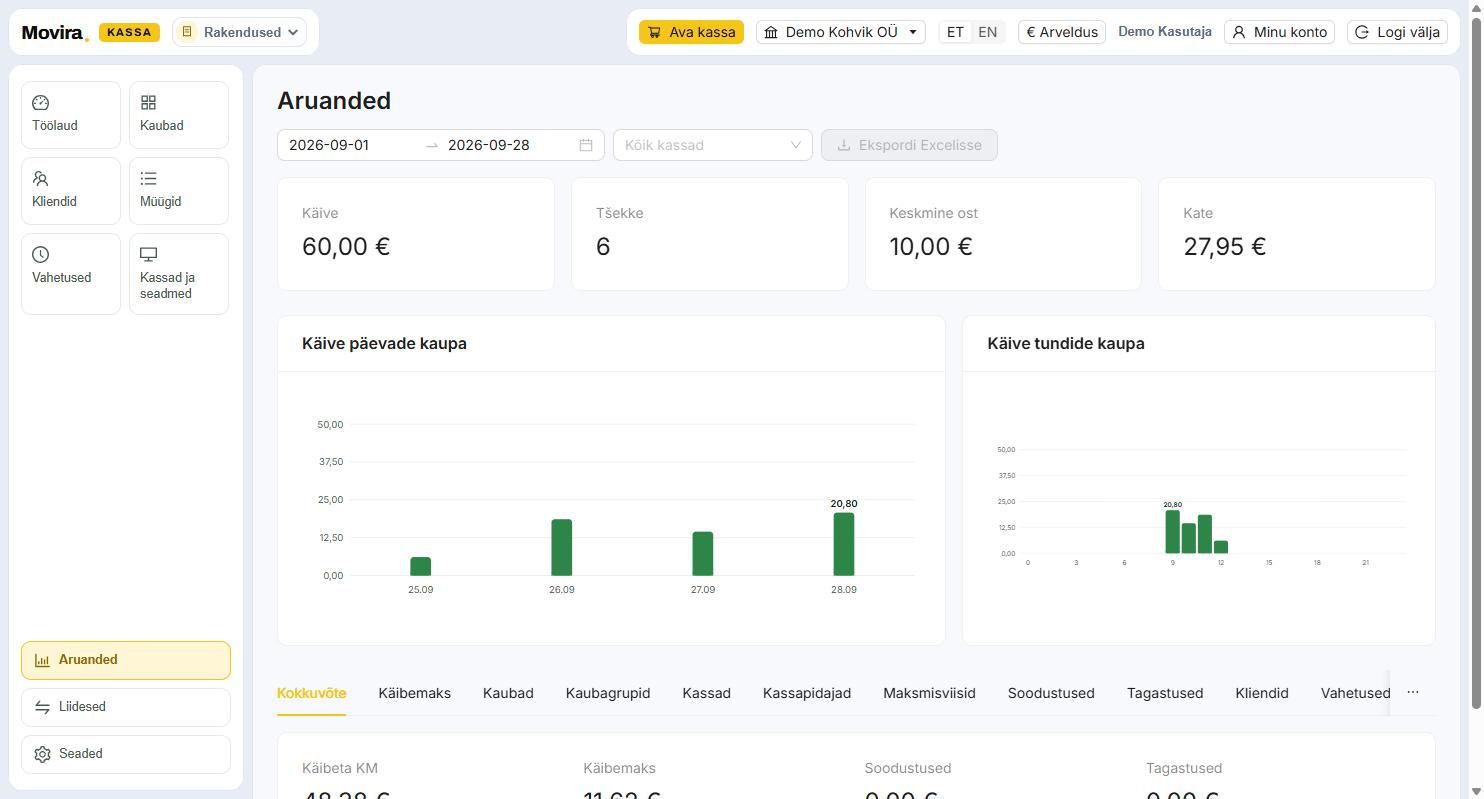
On the reports page you pick a period and, if you want, a single till. The top row gives turnover, receipt count, average basket and margin; the charts show which days and which hours the selling happens. The tabs below break the same period down by VAT rate, product, product group, till, cashier, payment method, discount, refund and customer. Everything you see on screen also comes out as an Excel file.
Margin is calculated from the cost price — which assumes the cost price is filled in on the product.
The hourly chart tells you when a second person behind the counter pays off.
For an accountant the VAT tab and the Excel file are usually enough.
Tips
What people usually trip over
I cannot find a product in the till view
The till view only shows active products. Check under "Products" that the product is active, and make sure you are not filtered down to one product group.
The stock level does not move
Stock tracking is switched on per product. With it off the till keeps selling but does not count stock — which is exactly right for services and food made on the spot.
Yesterday's shift was left open
Open "Shifts" and close yesterday by hand. Until it is closed the daily report is not final and the cash count never happens.
A sale did not reach the accounting software
Under "Integrations" every connection shows its last successful send and its last error. The most common cause is an expired key on the accounting side.
Two tills show different numbers
The dashboard adds tills together; the reports let you pick one. If the numbers still disagree, check that both tills are under the same account.
I want to try things without messing up real sales
Create a second account and switch to it from the top bar. Accounts cannot see each other's data.
The screenshots come from the working app on a demo account — no customer data appears here. They are in Estonian on the English page as well; the app itself speaks both languages and you switch at the top right.
Try it yourself
Reading this guide takes less time than working through it. If something stays unclear, write to us — a person answers, not a form.